Ergonomics is a system, not a single product. You cannot buy your way out of pain with one expensive chair if your monitor sits eight inches too low, and the best standing desk in the world will not help if your wrists bend upward every time you type. Every part of your setup connects to every other part. When one piece is wrong, the rest of your body compensates, and that compensation is what eventually turns into a sore neck, a tight lower back, or tingling fingers at the end of the day.
This page is the starting point. It walks through the whole system from the floor up, in the order that actually matters, so you can see how desk height feeds into chair fit, how chair fit feeds into wrist angle, and how all of it feeds into where your screen needs to sit. Each section gives you the concrete numbers to aim for and then links out to a deep-dive guide when you want to go further on a specific piece. Read it top to bottom once, fix the obvious problems, then come back to the focused guides as you upgrade.
Start With the Desk#
Your desk sets the height of everything above it, so it is where the math begins. The target is simple: when your hands rest on the keyboard, your elbows should sit at roughly 90 degrees with your forearms parallel to the floor and your shoulders relaxed. For most people of average height that puts the desk surface somewhere between 28 and 30 inches when seated. If your desk is fixed at the standard 29 inches and you are shorter or taller than average, you will end up either shrugging your shoulders or reaching down, and no chair adjustment fully fixes that.
This is the strongest argument for a sit-stand desk. Instead of guessing one height and living with it, you set the exact seated height for your body and a second standing height, then alternate between them through the day. The benefit is not that standing burns calories, it is that changing posture every 30 to 60 minutes keeps any single set of muscles from locking up. A good rule is to stand for the first part of a task and sit for the focused middle of it, or simply switch whenever you notice yourself getting restless.
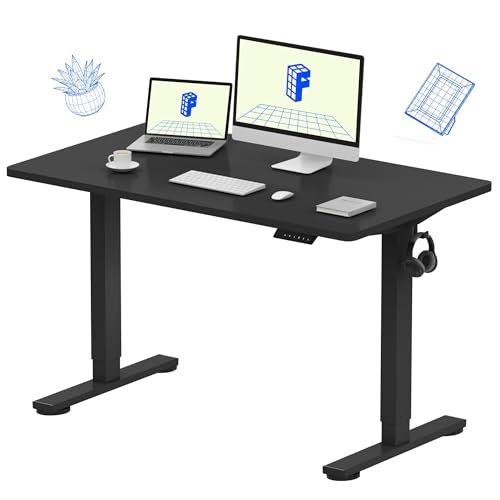
FlexiSpot EN1 Standing Desk 48×24
The FlexiSpot EN1 pairs a seamless one-piece desktop with quiet electric height adjustment and 4 memory presets — rock-solid, wobble-free stability that handles dual monitors with ease.
The FlexiSpot EN1 is a solid entry point into adjustable height without overspending. If you want the full breakdown of frames, motors, and stability, read our guide to the best standing desks. On a tighter budget, our roundup of standing desks under $500 covers the models that get the height range and wobble control right without the premium price.
Get the Chair Right#
Once the desk height is set, the chair is what holds your spine in a neutral position for hours at a time. Three adjustments matter more than anything else. First is lumbar support: the curve of the backrest should press gently into the inward curve of your lower back, not the middle of your spine, so you are supported rather than slouching. Second is seat depth: with your back against the backrest, you should be able to fit two to three fingers between the front edge of the seat and the back of your knees. A seat that is too deep forces you to perch forward and lose the lumbar support entirely.
Third is armrest height. Set the armrests so your elbows rest at that same 90-degree angle with your shoulders down and loose. If the armrests are too high they push your shoulders up toward your ears; too low and you lean on one side. Adjustable armrests that move up, down, in, and out are worth paying for, because fixed armrests almost never land in the right spot. For the full comparison of mesh versus foam, warranty length, and which chairs hold up over years of daily use, see our guide to the best ergonomic chairs.
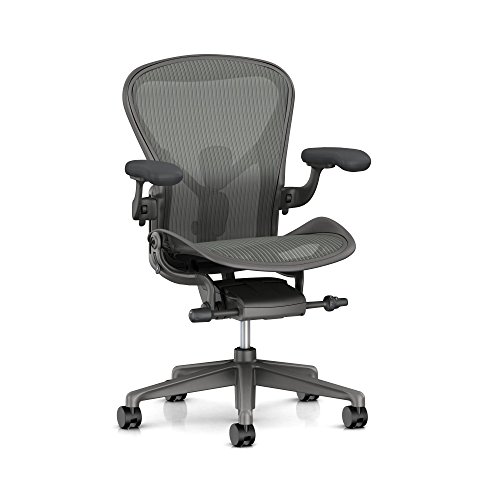
Herman Miller Aeron
Editor’s ChoiceThe Herman Miller Aeron is the definitive ergonomic chair — a 30-year-old design that still sets the benchmark for lumbar support, breathability, and long-session comfort.
The Herman Miller Aeron is the long-term benchmark for a reason, but the point is the fit, not the badge. Whatever chair you choose, set the lumbar, seat depth, and armrests before you decide whether it works.
Set Your Monitor to Eye Level#
With your desk and chair dialed in, your eyes are now at a fixed height, and the screen has to come to them. The top of your monitor should sit at or just below eye level, so your gaze drops slightly to the center of the screen rather than tilting up or craning down. Distance matters too: place the screen about an arm's length away, roughly 20 to 30 inches from your eyes. Too close and you strain to focus; too far and you lean in, which pulls your head forward and loads your neck.
Most monitors ship far too low because the included stand is short. You have two ways to fix this. A monitor riser is the cheap, fixed solution and works fine if your eye height does not change. A monitor arm is the better long-term answer because it lets you fine-tune height, distance, and tilt, frees up the desk surface underneath, and makes it trivial to reposition the screen when you switch between sitting and standing. Our guide to the best monitor arms covers clamp strength and weight ranges, and our roundup of the best monitors for work helps you pick the panel itself.

HUANUO FlowLift Single Monitor Mount
Editor’s ChoiceAutomotive-grade single arm tested for 20,000+ motion cycles, fits 13–32" monitors, sets up in about 3 minutes, with both C-clamp and grommet options.
If you run two screens, the geometry gets a little more involved, because the angle between them and which one you treat as primary both affect your neck. Our dual monitor setup guide walks through positioning for both even and primary-secondary layouts.
Keyboard, Mouse and Wrists#
Your wrists should stay neutral, meaning straight and flat, with your hands floating in line with your forearms rather than bending up toward the screen or down toward the desk. If your desk height is correct and your elbows are at 90 degrees, this usually takes care of itself, which is exactly why desk height came first. The keyboard and mouse should sit at the same level, close enough that you are not reaching forward, with your upper arms hanging relaxed at your sides.
A common mistake is propping up the little feet on the back of a keyboard, which tilts your wrists into extension and is the opposite of neutral. Keep the keyboard flat or even slightly negative-tilted. Wrist rests are useful but misunderstood: they are meant to support your palms during pauses, not to prop your wrists up while you type. If you add one, it should keep your wrist flat, not lift it. For the input devices themselves, see our guides to the best mechanical keyboards and the best ergonomic mice, and our roundup of wrist rests for the padding that actually holds its shape.
Light It Properly#
Lighting is the part of ergonomics people forget, and it is responsible for a surprising share of end-of-day eye strain and headaches. The two problems to solve are glare and contrast. Glare comes from a light source, often a window or a bright overhead fixture, reflecting off your screen or shining into your eyes; position your monitor so windows are to the side rather than directly behind or in front of it. Contrast strain comes from staring at a bright screen in a dark room, which forces your pupils to fight between the screen and the gloom around it.
The fix for contrast is bias lighting: a modest light source behind or around the monitor that lifts the ambient brightness closer to the screen's, so your eyes are not jumping between extremes. For the light at your desk, aim for a neutral color temperature around 4000 to 5000 kelvin during the work day, which reads as clean and white, then shift warmer in the evening if you work late. A good desk lamp with adjustable brightness and an arm that gets light onto your work without bouncing it off the screen does most of the job. Our guide to the best desk lighting covers lamps, bias strips, and placement in detail.
Build In Movement#
Here is the honest truth that no product page will tell you: the single most effective ergonomic intervention is moving more. The best posture in the world becomes a problem if you hold it for four hours straight. Bodies are built to change position often, and the goal of a good setup is not to lock you into one perfect pose but to make movement easy and frequent. Take a micro-break every 30 minutes or so, even if it is just standing up, rolling your shoulders, and looking at something far away for 20 seconds to relax your eyes.
A few pieces of gear make movement the default rather than an act of willpower. A footrest gives your legs a second resting position and supports good circulation when your chair leaves your feet slightly short of the floor. An under-desk treadmill or walking pad turns calls and reading time into gentle, steady steps, which is far easier on the body than the same hours spent motionless. See our guides to the best under-desk treadmills and the best footrests for the models that are quiet, stable, and actually get used.
The 10-Minute Ergonomic Checklist#
Run through this list right now at your current setup. Each item takes under a minute to check and most take seconds to fix.
- Desk height: elbows at about 90 degrees, forearms parallel to the floor, shoulders relaxed.
- Chair lumbar: the backrest curve presses into the inward curve of your lower back.
- Seat depth: two to three fingers fit between the seat edge and the back of your knees.
- Armrests: elbows supported at 90 degrees without your shoulders lifting.
- Monitor height: top of the screen at or just below eye level.
- Monitor distance: about an arm's length away, roughly 20 to 30 inches.
- Wrists: flat and straight while typing, keyboard not tilted up at the back.
- Feet: flat on the floor or on a footrest, thighs parallel to the floor.
- Lighting: no glare on the screen, room not much darker than the display.
- Movement: a plan to change posture and take a short break every 30 to 60 minutes.
When a Check Fails: Quick Fixes#
- Feet do not reach the floor: lower the chair. If it is already at minimum height, add a footrest to bring the floor up to your feet rather than letting them dangle.
- Thighs slope downward: the chair is too high. Lower it until your thighs are parallel to the floor.
- Lumbar support hits your mid-back: lower it until it meets the inward curve of your lower back, roughly at belly-button height. If it cannot be adjusted, use a lumbar pillow as a stopgap and put the chair on your upgrade list.
- Shoulders hunched: the armrests are too high. Elbows unsupported: too low. If the armrests cannot reach the right height at all, the real mismatch is between chair and desk, and an adjustable desk fixes it.
- Head tilted down to the screen: the monitor is too low. Head tilted back: too high.
- Leaning forward to read: before moving the monitor closer, increase display scaling in your operating system. Small text, not distance, is usually the culprit.
- Wrists bend upward: fold away the keyboard's rear feet. Wrists bend downward: the keyboard sits too high, so lower the desk or use a keyboard tray.
- Screen washed out by daylight: rotate the desk so windows are to the side, and use a monitor light bar for desk light that does not hit the screen.
- Eye strain by late afternoon: as daylight fades, the screen-to-room contrast climbs. Aim for roughly 300 lux on the desk for general work and 500 lux for detailed reading, and add a lamp or bias lighting to keep the surround up.
Make one adjustment at a time and work for at least 30 minutes before changing the next one. Changing everything at once feels strange and makes it hard to tell which fix helped. Any check you cannot pass with your current equipment is an upgrade priority.
Beyond the Desk: Room, Acoustics and Build Order#
Ergonomics covers your body, but the room around the desk decides whether you actually want to work there. Three things are worth getting right.
Desk footprint. Choose a surface at least 30 inches deep. Shallow desks push the monitor too close to your eyes and leave no room for a keyboard, mouse, and desk mat side by side. A 60-inch width fits two monitors with space to spare.
Acoustics. Hard walls, bare floors, and glass reflect sound, and that echo makes every video call worse for the people on the other end. Soft furnishings absorb it: a rug, curtains, an upholstered chair, or a full bookshelf. If the room is particularly bad, a few acoustic panels on the wall behind your desk handle the worst reflections cheaply. Our guide to soundproofing a home office on a budget covers what works and what is a waste of money.
Ambient light. Beyond the desk lamp, have at least one diffused room light, such as a floor lamp in a corner, so you are never working by monitor glow alone.
If you are building from scratch, buy in this order so each decision builds on the last:
- Desk and chair. They set every other height and take the longest to research and receive.
- Monitor and arm. Once the desk is placed, you know where the screen needs to go.
- Lighting. You need the monitor in place to position a light bar and check your on-camera lighting.
- Cable management. Only after everything is connected can you route and hide cables properly; see our cable management solutions.
- Accessories. Keyboard, mouse, desk mat, and organizers round out the setup.
Working with a tight budget? Our budget desk setup under $300 builds a complete, comfortable setup for a fraction of a premium build.
Frequently Asked Questions#
What is the correct desk height?#
Aim for a height where your elbows sit at about 90 degrees and your forearms run parallel to the floor while your hands rest on the keyboard. For most people of average height that lands between 28 and 30 inches when seated. The reliable fix is an adjustable desk, since one fixed height cannot suit everyone, and standing height is several inches taller than seated.
How high should my monitor be?#
The top of the screen should sit at or just below your eye level, so your gaze drops slightly to the center rather than tilting upward. Keep it about an arm's length away, roughly 20 to 30 inches from your eyes. Most stock monitor stands are too short, so a riser or a monitor arm is usually needed to get there.
Is a standing desk better than sitting?#
Neither pure standing nor pure sitting is ideal; the benefit comes from alternating between the two. Standing all day causes its own foot and leg fatigue, while sitting all day stiffens the hips and lower back. Aim to switch positions every 30 to 60 minutes, which is exactly what an adjustable desk makes easy.
Do I really need an ergonomic chair?#
You need a chair that supports your lower back, lets you set the seat depth, and positions your elbows at 90 degrees; that is what makes a chair ergonomic, not the brand. If you sit for six or more hours a day, a quality adjustable chair pays for itself in comfort and in avoided aches. If your budget is tight, prioritize lumbar support and adjustability over premium materials.
How often should I take breaks?#
Take a micro-break roughly every 30 minutes: stand up, roll your shoulders, and shift position even for 30 seconds. For your eyes, follow the rule of looking at something about 20 feet away for 20 seconds every 20 minutes to relax focus. Frequent small breaks do far more for comfort than one long break in the middle of the day.
The Bottom Line#
If you are deciding where to put your money, spend it in this order. First, fix monitor height and chair support, because those two solve neck, shoulder, and lower-back pain that no accessory can undo, and the monitor fix can cost as little as a riser. Second, invest in an adjustable desk so you can set the correct height for your body and alternate between sitting and standing. Third, add the accessories, the keyboard, mouse, lighting, footrest, and walking pad, that round out the system once the foundation is right.
And the honest note to end on: gear sets the stage, but habits do the work. The most expensive setup in the world will still leave you sore if you sit frozen in it for hours, while a modest setup used with frequent movement and good positioning will keep you comfortable for years. Fix the obvious problems on the checklist today, then build the rest of your setup one deliberate piece at a time.