Choosing an ergonomic mouse comes down to three things: a body sized to your hand, a shape that supports the way you actually grip, and a wrist angle that matches where you feel strain. Get those right and the features almost take care of themselves; get them wrong and no sensor, scroll wheel, or battery spec will save your forearm by Friday afternoon.
Want our ranked shortlist? See the best ergonomic mice.
This guide is the step before that list. It walks through what to measure, which design trade-offs matter, where your money goes as you move up in tier, and the mistakes that send people back to the returns page.
Before You Buy: What to Measure and Check#
Measure your hand, two ways#
Hand length is the measurement most fitting charts use: from the crease at the base of your palm to the tip of your middle finger. Under about 17 cm (roughly 6.7 inches) is small, 17 to 19 cm (about 6.7 to 7.5 inches) is medium, and over 19 cm is large.
Hand width matters almost as much and is usually ignored. Measure straight across your knuckles, not including the thumb. A wide hand on a narrow mouse pinches the ring and little fingers together, and those two fingers end up dragging on the desk, which is a common source of outer-forearm fatigue.
A rough starting point many fitting guides use for palm grip is a mouse length around 60 percent of your hand length. Treat it as a filter, not a rule. A large hand (around 20 cm) lands near the full-size MX Master class, which the spec sheet lists at 141 g, with a long, tall body. A small-to-medium hand is better matched to something like the Logitech Lift, which Logitech sizes for small to medium hands.
Identify your real grip, not your ideal one#
Rest your hand on your current mouse for a minute while you work, then look down. If your whole palm touches the back, you palm grip. If your palm touches only the rear edge and your fingers arch, you claw grip. If only your fingertips touch, you fingertip grip. People often describe themselves as palm grippers and then claw the moment they need precision, so watch yourself during a real task.
Locate your pain before choosing a shape#
Where it hurts tells you which design to look at:
- Top of the wrist or a pinch where the wrist bends back: often wrist extension from a mouse that is too low or too short. A taller, better-filled shape usually helps.
- Forearm, especially the outer side, after hours of mousing: often pronation, the palm-down rotation of the forearm. This is the case where a vertical mouse makes sense.
- Thumb base: often a thumb clamping onto a smooth side. Look for a sculpted thumb rest.
- Shoulder and upper arm: often a mouse placed too far out to the side, or a cursor speed so low you sweep your whole arm. That is a placement and settings problem before it is a mouse problem.
None of this replaces a clinician if pain is persistent or sharp.
Check handedness and platform#
Most sculpted ergonomic mice are right-handed only. The MX Master 3S and Razer Pro Click V2 are both right-handed with no mirrored version, while the Logitech Lift has a left-handed version sold separately. Symmetric shapes like the Microsoft Surface Mobile Mouse and Apple Magic Mouse work in either hand but give up the contouring.
Platform matters too. The Magic Mouse's gestures are built around macOS. Software-dependent features such as button remapping on the Pro Click V2 require Razer Synapse, which matters if your work laptop blocks software installs.
Check the receiver situation#
If you plan to use a USB receiver rather than Bluetooth, confirm you have a free port of the right type, or a hub. Logitech's newer mice, including the MX Master 3S and MX Anywhere 3S, use the Logi Bolt receiver, which is a different system from the older Unifying receiver, so an old Unifying dongle will not pair them.
The Decision Axes and Their Trade-offs#
Wrist angle: flat, sculpted, or vertical#
A flat or low mouse keeps your hand palm-down and low to the desk. It is precise and easy to pick up and move, but it offers the least support. A sculpted standard mouse tilts slightly, fills the palm, and adds a thumb rest; this is the broadest-fit option and the one most people should start with. A vertical mouse like the Lift, with its 57-degree angle, rotates your forearm toward a handshake posture. It targets pronation directly, but it slows fine cursor work at first and takes days to adapt to.
Weight: stability versus glide#
Heavier mice feel planted and resist accidental nudges, which suits slow, deliberate work. Lighter mice take less effort to start and stop, which adds up over thousands of small movements. The spread is wide: the MX Master 3S is listed at 141 g, the MX Anywhere 3S at 99 g, and the G PRO X Superlight 2 at 60 g. If your hand tires from lifting and repositioning, try lighter. If you over-shoot targets, heavier may feel calmer.
Buttons and wheels: shortcuts versus simplicity#
Extra buttons only reduce strain if they replace keyboard reaches you make constantly, like back, forward, copy, or app switching. Placement matters more than count. A button you have to shift your grip to reach adds strain instead of removing it. The Basilisk V3 offers 11 programmable buttons and the G502 X Plus offers 13 controls, which is excellent for macro-heavy work and overkill for email. A switchable scroll wheel, ratcheted for precise steps and free-spinning for long documents, is one of the most useful features for spreadsheet and code work.
Power: rechargeable, AA, or wired#
Rechargeable mice charge over USB-C and typically run weeks between charges. AA-powered mice like the Logitech M720 Triathlon, rated up to 24 months on one AA, and the Surface Mobile Mouse, around a year, almost never need attention but add battery swaps over time. Wired mice like the Basilisk V3 never need charging but add cable drag; a mouse bungee or a desk mat with a cable channel helps.
Single machine versus multi-device#
If you move between a laptop and a desktop, a mouse that pairs with several devices and switches with a button removes a daily annoyance. The M720 switches between three computers; the MX Master 3S supports three as well. If you only ever use one machine, this feature is free weight on the spec sheet.
Budget Tiers: What You Gain as You Move Up#
Budget: expect a decent sensor, a basic or wired connection, and either a symmetric shape or a gaming-derived ergonomic body. The trade-off is usually software polish, multi-device switching, or rechargeability. A wired gaming mouse with a good right-handed shape is often the best ergonomics per unit of spend in this tier.
Mid-range: this is where multi-device pairing, quieter clicks, better thumb rests, and longer-lasting batteries appear. Vertical mice from established brands also tend to sit here. For most people working from one desk, mid-range covers everything that actually affects comfort.
Premium: you gain refinements rather than new fundamentals: electromagnetic scroll wheels, sensors that track on glass, deeper per-app customization, and more polished build quality. Premium is worth it when you live in long documents, timelines, or multiple machines all day. It is not worth it if the shape does not fit your hand; a premium mouse in the wrong size is still the wrong mouse.
Common Mistakes#
- Buying by DPI. The sensor ceiling is the least important spec for desk comfort. Every mouse in a sensible shortlist tracks fine at normal office settings.
- Choosing a travel mouse as a daily driver. Compact mice are convenient, but a smaller body generally tires the hand sooner than a full-size one over a long session. Even a well-regarded travel mouse like the MX Anywhere 3S is best treated as the bag mouse, not the desk mouse, if you have medium or large hands.
- Going vertical without a reason. A vertical mouse solves pronation-related strain. If your pain is elsewhere, you take on the learning curve and the precision hit for nothing.
- Ignoring mouse placement. Keep the mouse close to the keyboard and at roughly the same height, with your elbow near your side. A compact keyboard without a number pad brings the mouse several inches closer to your centerline.
- Setting cursor speed too low. If you sweep your arm to cross the screen, raise the pointer speed so small wrist and finger movements do the work.
- Judging comfort in five minutes. Any new shape feels odd at first. Give a new mouse a full week before deciding, especially a vertical one.
Picks by Need#
Large hands, palm grip, long documents. The full-size, heavily sculpted body fills a large palm, and the MagSpeed wheel and multi-device switching suit people who live in spreadsheets across several machines.

Logitech MX Master 3S
Editor’s ChoiceThe Logitech MX Master 3S is the best productivity mouse available — an MagSpeed electromagnetic scroll wheel, 8K DPI sensor, and whisper-quiet clicks on a 70-day battery.
Forearm strain from pronation, small to medium hands. The 57-degree vertical angle targets forearm rotation directly, and the sizing suits hands that drown in full-size ergonomic mice. Left-handers can get a mirrored version.
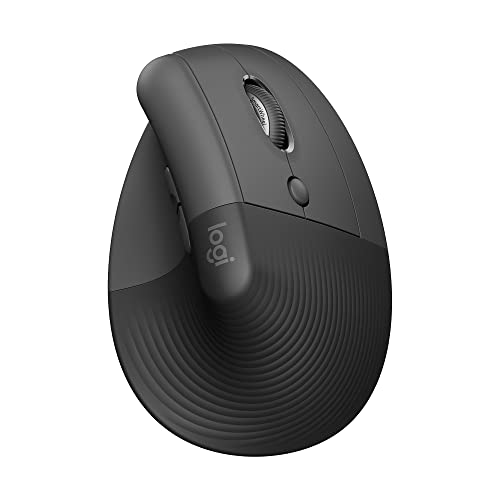
Logitech Lift Vertical Ergonomic Mouse
A 57-degree vertical mouse sized for small to medium right hands, with a soft-touch grip, thumb rest, quiet clicks, and Bluetooth or Logi Bolt connection — the gentlest entry into vertical mice.
Want a sculpted thumb rest and a fast wireless link. A right-handed ergonomic shape with a pronounced thumb rest, plus a 2.4 GHz receiver or Bluetooth, for people who split time between productivity work and the occasional game.

Razer Pro Click V2
The Razer Pro Click V2 bridges gaming-grade precision with professional ergonomics — a right-handed design with a sculpted thumb rest, a 30K DPI Focus Pro sensor, and HyperSpeed or Bluetooth multi-device wireless.
Tight budget, medium-to-large right hand. A comfortable thumb-rest shape, 11 programmable buttons, and a wired connection that never needs charging. The gaming styling is the trade-off.
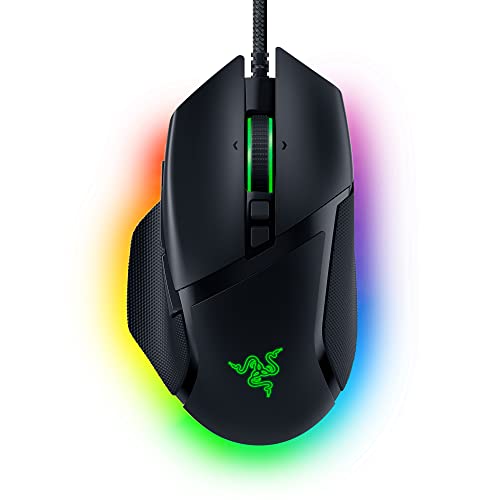
Razer Basilisk V3 Wired Gaming Mouse
Best ValueThe most-reviewed Razer here — a 26K DPI Focus+ sensor, HyperScroll tilt wheel, 11 programmable buttons, Gen-2 optical switches, 11-zone Chroma RGB, and an iconic ergonomic thumb rest. Outstanding value.
Hand tires from heavier mice. At 60 g, this is for people who find repositioning a heavy mouse tiring and do not need extra thumb buttons.

Logitech G PRO X Superlight 2
Editor’s ChoiceA championship-winning 60g ultralight wireless gaming mouse with the HERO 2 44K DPI sensor, 8kHz polling, LIGHTFORCE switches, 95-hour battery, and USB-C charging — the pro esports standard.
Frequently Asked Questions#
How do I measure my hand for a mouse?#
Measure from the crease at the base of your palm to the tip of your middle finger for length, and straight across your knuckles, excluding the thumb, for width. Under about 17 cm long is small, 17 to 19 cm is medium, and over 19 cm is large. Compare those numbers with the mouse's listed length and the hand size the manufacturer recommends, then factor in your grip: palm grippers want a longer, fuller body than claw or fingertip grippers with the same hand.
Are gaming mice good for office work?#
Often, yes. Gaming mice frequently have well-sculpted shapes, reliable sensors, and plenty of programmable buttons, and some are lighter than typical office mice. The trade-offs are styling, RGB lighting that shortens battery life on wireless models, and software that can be heavier than office users want. Ignore the sensor marketing and judge a gaming mouse by its shape, weight, and button placement, exactly as you would an office mouse.
Can left-handed people get a proper ergonomic mouse?#
The choice is narrower but real. Some vertical mice come in mirrored left-handed versions, the Logitech Lift being one example. Symmetric mice work in the left hand but lack a contoured thumb rest. Many popular sculpted mice, including the MX Master 3S and Razer Pro Click V2, are right-handed only, so check the listing for a left-handed variant before assuming one exists.
How long does it take to get used to a new ergonomic mouse?#
A sculpted standard mouse usually feels natural within a few days. A vertical mouse takes longer; a few days to a couple of weeks is typical, and precision work is the last thing to come back. Start by using it for lighter tasks, keep your old mouse nearby for deadline-critical precision work during the first week, and lower your expectations for the first few days rather than giving up on day one.
The Short Version#
Measure your hand, watch how you actually grip, and pick the shape that matches where you hurt. Then choose features. When you are ready to compare specific models, see our ranked best ergonomic mice.