The 10 Best
Docking Stations
of 2026, researched and compared.
The short answer: The Anker 575 13-in-1 USB-C Docking Station is our top pick for Windows laptop users who want up to three displays, charging, and Ethernet from one cable. On a budget, the Anker 8-in-1 Dual HDMI USB-C Dock handles two external monitors. For three 4K screens, the Plugable UD-ULTC4K Triple 4K Docking Station is the premium alternative.
The shortlist
Scan our top 10 picks. Tap a row to jump to the full review, or check the price on Amazon.
Check Amazon for current pricing and availability. As an Amazon Associate we earn from qualifying purchases.
| Product | Best for | ||
|---|---|---|---|
| 01 |  Anker 575 13-in-1 USB-C Docking StationEditor’s Choice | Editor’s Choice | Check Price |
| 02 |  Lenovo ThinkPad Universal USB-C Dock | — | Check Price |
| 03 |  Plugable UD-ULTC4K Triple 4K Docking StationPremium Pick | Premium Pick | Check Price |
| 04 |  Dell WD19S 180W Docking Station | — | Check Price |
| 05 |  Baseus Spacemate 11-in-1 Docking Station | — | Check Price |
| 06 |  Anker 8-in-1 Dual HDMI USB-C DockBest Value | Best Value | Check Price |
| 07 |  Lenovo ThinkPad USB-C Dock Gen 2 | — | Check Price |
| 08 |  Dell D6000 Universal Dock | — | Check Price |
| 09 |  Dell WD19TB Thunderbolt Dock | — | Check Price |
| 10 |  Plugable 13-in-1 Triple HDMI USB-C Dock | — | Check Price |
Anker 575 13-in-1 USB-C Docking StationLenovo ThinkPad Universal USB-C DockPlugable UD-ULTC4K Triple 4K Docking StationDell WD19S 180W Docking StationBaseus Spacemate 11-in-1 Docking StationAnker 8-in-1 Dual HDMI USB-C DockLenovo ThinkPad USB-C Dock Gen 2Dell D6000 Universal DockDell WD19TB Thunderbolt DockPlugable 13-in-1 Triple HDMI USB-C DockProduct details via Amazon Creators API. Check Amazon for current price and availability.

Review · 01
Anker 575 13-in-1 USB-C Docking Station
A full USB-C dock with 2 HDMI, a DisplayPort, 85W laptop charging, 10Gbps USB-C, Gigabit Ethernet, and an included 135W power adapter — triple displays on Windows from one cable.
What We Love
- 13 ports including 2 HDMI + DisplayPort
- 85W laptop charging, 135W adapter included
- 10Gbps USB-C data
Reasons to Skip
- Triple display is Windows only; Macs mirror
- Triple mode limited to 1080p
The Numbers
“A full USB-C dock with 2 HDMI, a DisplayPort, 85W laptop charging, 10Gbps USB-C, Gigabit Ethernet, and an included 135W power adapter — triple displays on Windows from one cable.”

Review · 02
Lenovo ThinkPad Universal USB-C Dock
A business-grade USB-C dock that works with any USB-C laptop, with multi-display output, Ethernet, and IT-friendly features like PXE boot, Wake-on-LAN, and MAC address pass-through.
What We Love
- Works with non-Lenovo USB-C laptops
- IT features: PXE, WOL, MAC pass-through
- Automatic firmware updates
Reasons to Skip
- Plain business styling
- Best feature set on ThinkPads
The Numbers
“A business-grade USB-C dock that works with any USB-C laptop, with multi-display output, Ethernet, and IT-friendly features like PXE boot, Wake-on-LAN, and MAC address pass-through.”
Review · 03
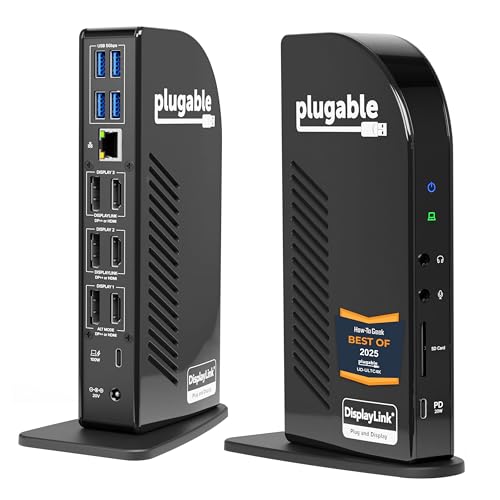
Plugable UD-ULTC4K Triple 4K Docking Station
A DisplayLink-based 13-in-1 dock that drives up to three 4K 60Hz monitors — including from base MacBooks that only support one display natively — with 100W laptop charging.
What We Love
- Three 4K 60Hz monitors via DisplayLink
- Works around single-display MacBook limits
- 100W charging plus 20W accessory port
Reasons to Skip
- Requires DisplayLink drivers
- No HDCP — some streaming video won't play
The Numbers
“A DisplayLink-based 13-in-1 dock that drives up to three 4K 60Hz monitors — including from base MacBooks that only support one display natively — with 100W laptop charging.”

Review · 04
Dell WD19S 180W Docking Station
Dell's mainstream USB-C business dock with a 180W adapter, HDMI plus dual DisplayPort outputs, and fast charging for Dell laptops — a common pick for IT-managed desks.
What We Love
- HDMI + 2x DisplayPort
- 180W adapter for fast Dell charging
- Widely supported in IT fleets
Reasons to Skip
- Full charging speed only on Dell laptops
- Bulky power brick
The Numbers
“Dell's mainstream USB-C business dock with a 180W adapter, HDMI plus dual DisplayPort outputs, and fast charging for Dell laptops — a common pick for IT-managed desks.”

Review · 05
Baseus Spacemate 11-in-1 Docking Station
A vertical aluminum USB-C dock with 2 HDMI and 2 DisplayPort outputs for triple displays on Windows, 10Gbps USB, Gigabit Ethernet, and 100W pass-through charging.
What We Love
- Small vertical footprint
- 2 HDMI + 2 DP, triple display on Windows
- 10Gbps USB-A and USB-C
Reasons to Skip
- Triple display drops to 4K 30Hz
- Macs limited by native display support
The Numbers
“A vertical aluminum USB-C dock with 2 HDMI and 2 DisplayPort outputs for triple displays on Windows, 10Gbps USB, Gigabit Ethernet, and 100W pass-through charging.”

Review · 06
Anker 8-in-1 Dual HDMI USB-C Dock
A compact budget dock with dual HDMI, Gigabit Ethernet, SD/microSD, two USB-A ports, and 85W pass-through charging — the cheapest way to get two screens and wired internet from one cable.
What We Love
- Dual HDMI for two screens
- Gigabit Ethernet and card readers
- Low price
Reasons to Skip
- Two displays limited to 4K 30Hz; Macs mirror
- Bus-powered — needs your own charger
The Numbers
“A compact budget dock with dual HDMI, Gigabit Ethernet, SD/microSD, two USB-A ports, and 85W pass-through charging — the cheapest way to get two screens and wired internet from one cable.”

Review · 07
Lenovo ThinkPad USB-C Dock Gen 2
A business USB-C dock with 1 HDMI and 2 DisplayPort outputs for up to three external monitors, Gigabit Ethernet, five USB-A ports, and a combo audio jack.
What We Love
- HDMI + 2x DisplayPort, up to 3 monitors
- Gigabit Ethernet and 5 USB-A ports
- Proven IT-fleet dock
Reasons to Skip
- Best feature support on ThinkPads
- Three 4K displays depend on your laptop's output
The Numbers
“A business USB-C dock with 1 HDMI and 2 DisplayPort outputs for up to three external monitors, Gigabit Ethernet, five USB-A ports, and a combo audio jack.”
Review · 08
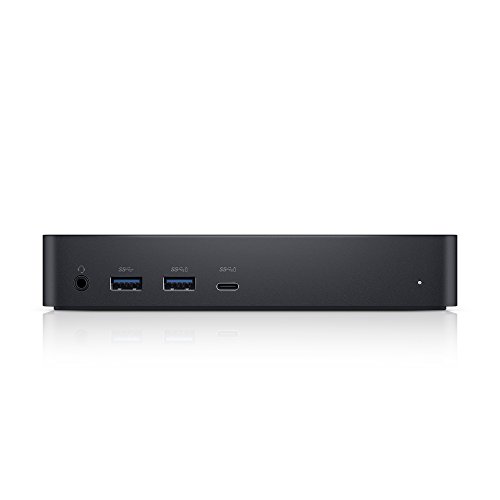
Dell D6000 Universal Dock
A DisplayLink-based universal dock that drives up to three 4K displays or one 5K screen from USB-C or USB 3.0, with a 130W power adapter and laptop charging.
What We Love
- Up to three 4K displays or one 5K
- Works over USB-C or USB 3.0
- Works with non-Dell laptops
Reasons to Skip
- Requires DisplayLink drivers
- Charging power varies by laptop
The Numbers
“A DisplayLink-based universal dock that drives up to three 4K displays or one 5K screen from USB-C or USB 3.0, with a 130W power adapter and laptop charging.”

Review · 09
Dell WD19TB Thunderbolt Dock
Dell's Thunderbolt 3 business dock with a 180W adapter, 2 DisplayPort 1.4 plus HDMI 2.0 and a USB-C video port, Gigabit Ethernet, and up to 130W charging for Dell laptops.
What We Love
- 2x DP 1.4 + HDMI 2.0 + USB-C video
- Thunderbolt 3 bandwidth
- 180W adapter, 130W to Dell laptops
Reasons to Skip
- Full charging speed only on Dell laptops
- Large power brick
The Numbers
“Dell's Thunderbolt 3 business dock with a 180W adapter, 2 DisplayPort 1.4 plus HDMI 2.0 and a USB-C video port, Gigabit Ethernet, and up to 130W charging for Dell laptops.”

Review · 10
Plugable 13-in-1 Triple HDMI USB-C Dock
A DisplayLink USB-C dock with three HDMI outputs, 100W laptop charging, a 20W front USB-C port, and Gigabit Ethernet — three extended screens even from a base MacBook.
What We Love
- Three HDMI displays via DisplayLink
- 100W laptop charging
- Works with Mac, Windows, ChromeOS
Reasons to Skip
- Requires DisplayLink drivers
- Only one output reaches 4K (at 30Hz)
The Numbers
“A DisplayLink USB-C dock with three HDMI outputs, 100W laptop charging, a 20W front USB-C port, and Gigabit Ethernet — three extended screens even from a base MacBook.”
How We Judge Docking Stations
Thunderbolt vs. USB-C Docks
Thunderbolt 4 and Thunderbolt 5 docks run at 40-80Gbps and can drive two 4K or larger displays while moving files from fast SSDs, but they cost several times more than a USB-C dock and only reach full speed on a Thunderbolt or USB4 port. USB-C docks cost far less and share 10Gbps or less between video and data, which is plenty for monitors, peripherals, and Ethernet. If your laptop has Thunderbolt and you run two high-resolution screens or external storage, pay for Thunderbolt; if it has a plain USB-C port, a Thunderbolt dock gives you nothing extra, so buy a good USB-C dock instead.
Display Support (and the MacBook Catch)
Check exactly how many monitors the dock drives, at what resolution, and at what refresh rate, because 4K at 30Hz feels sluggish while 4K at 60Hz is smooth. Base Apple silicon MacBooks (M1, M2, and M3 non-Pro) support only one external display natively, so a dual-monitor dock will mirror or leave a screen dark unless it uses DisplayLink drivers. Windows laptops usually handle two displays over MST or Thunderbolt without extra software. If you run two monitors from a base MacBook, buy a DisplayLink dock; otherwise prefer native Thunderbolt or DisplayPort output, which avoids driver issues.
Charging Power and the Power Brick
A dock replaces your laptop charger, so its Power Delivery rating needs to cover your laptop: around 60W for 13-inch ultrabooks, 85-100W for 14-16 inch machines, and more for high-performance laptops that can still drain slowly under full load. Docks also draw a few watts themselves, so the laptop receives slightly less than the headline figure. Most real docks use an external power brick, which is the main difference from a bus-powered hub. If your laptop shipped with a charger above 100W, check that the dock can keep up, or plan to keep using the original charger alongside it.
When a Hub Is Enough
A full dock earns its price when you plug a laptop into the same desk every day and want monitors, Ethernet, keyboard, webcam, and charging on one cable. If you only need one extra screen and a couple of USB ports while traveling, an inexpensive USB-C hub does the job and fits in a pocket. Desktop PCs rarely need a dock at all, since they already have ports on the back. Skip the dock if you move between places constantly or never connect more than two accessories.