Choosing a webcam comes down to three things: the light in your room, what you'll actually use it for (meetings, streaming, or recording), and whether your computer, ports, and monitor can support it. A camera matched to those three will make you look better than a pricier one chosen on resolution alone.
Want our ranked shortlist? See the best webcams.
This guide focuses on the decisions that come before the shortlist: what to check on your setup, the real trade-offs between camera types, what you gain as you spend more, and the mistakes that leave people disappointed with a perfectly good camera.
What to Check Before You Buy#
Your room's light, honestly assessed#
Sit where you take calls at the time of day you take most of them, and look at what's in front of you and behind you. A bright window behind you is the hardest case: the camera exposes for the window and your face goes dark. A single overhead light casts shadows under your eyes. Even, soft light from in front of you is the easy case, and almost any decent webcam looks good there.
This one check tells you where to spend. Bright, even room: a solid 1080p camera is enough. Dim room or a window you can't move away from: put your money into a camera with a larger sensor and HDR, like the Razer Kiyo Pro Ultra, or into a desk light. Our desk lighting reviews cover lamps that help on camera.
Your computer's ports#
Look at what ports you have free. Most webcams ship with a USB-A plug, some with USB-C, and some include an adapter; the EMEET C960, for example, includes an A-to-C adapter. If your laptop only has USB-C, either buy a camera with a USB-C cable, like the Logitech MX Brio or Elgato Facecam MK.2, or plan for an adapter or hub.
Speed matters for 4K. The Logitech Brio 4K, for example, needs a modern computer with a USB 3.0 port for full-quality 4K output. On an older USB 2.0 port or a slow hub, a 4K camera may fall back to lower modes. If you'll run the camera through a USB hub or dock, check that the hub's ports are USB 3.0 or faster.
Your monitor's top edge#
Webcams sit on top of your screen with a hinged clip. Thin-bezel monitors, curved monitors, and screens that sit very close to a wall can make clips unstable or push the camera to an awkward angle. Check that the clip will grip your monitor's top edge, or that the camera has a tripod thread so you can use a small stand or desk arm instead. The Logitech C920x and C922x both include a tripod thread.
Your operating system and apps#
Most webcams are plug-and-play on Windows, macOS, and ChromeOS, and show up in Zoom, Teams, and Meet with no driver. What varies is the companion software that unlocks advanced settings. Some brands support both Windows and Mac well; others focus on Windows. If you want manual control of exposure and color, check that the brand's app runs on your OS. If you sign in to Windows with your face, look for an IR sensor: the Logitech Brio 4K supports Windows Hello.
Your distance from the camera#
Measure how far your face sits from the screen. Fixed-focus cameras are tuned for a typical sitting distance and go soft if you lean in close. If you hold objects up to the camera, sit unusually close, or move around, autofocus matters more than resolution.
The Decision Axes and Trade-Offs#
Meetings vs streaming vs recording#
For meetings, prioritize a clean image in your real lighting, a reliable connection, and maybe a privacy shutter. Call apps compress video heavily, so extra resolution rarely reaches the other person. For streaming, frame rate and manual control matter more, because you're setting a consistent look under controlled light. For recording, where your file isn't compressed by a call app, higher resolution and better sensors show their value.
Autofocus vs fixed focus#
Autofocus keeps you sharp as you move but can hunt, briefly blurring the image. Fixed focus never hunts but only stays sharp at its set distance. The Elgato Facecam MK.2 uses a fixed-focus lens, which streamers often prefer because the image never pulses. For desk calls where you lean in and out, autofocus is the safer default.
Built-in mics vs a separate microphone#
Webcam mics are convenient and fine for casual calls. If you present, record, or take long calls in an echoey room, a dedicated mic or headset will sound clearer than any webcam mic. Our microphone reviews cover desk mics that pair well.
Software features#
Some cameras add auto-framing that keeps you centered, desk-view modes like the MX Brio's Show Mode, or light correction. These help in the right setup, but they depend on the brand's software, so check that it runs on your computer before paying for them.
Budget Tiers: What You Gain at Each Level#
Budget. 1080p cameras with built-in mics and often a privacy cover. They're a big step up from most laptop cameras in decent light but get grainy in dim rooms, and fixed-focus models go soft if you lean in.
Mid-range. Better glass lenses, autofocus, light correction, 2K resolution on some models, smoother 60fps modes at lower resolutions, and more mature software. This is where most people working from home should buy.
Premium. 4K sensors, HDR, larger sensors or pixels for low light, USB-C, desk-view features, and full manual control. Worth it for dim rooms, streaming, recording, or if you want the camera to handle difficult light without adding a lamp.
Common Mistakes to Avoid#
- Buying resolution to fix a lighting problem. A 4K camera in a backlit room still shows a dark face. Fix the light or buy for sensor and HDR.
- Plugging a 4K camera into a slow port or hub. It can silently fall back to lower modes.
- Leaving the camera at laptop height. Clip it to an external monitor at eye level; looking down into a camera is the least flattering angle there is.
- Forgetting to pick the right camera in the app. Zoom, Teams, and Meet often default to the built-in camera and mic. Select the new webcam, and choose your preferred mic, in each app's settings.
- Skipping the software. Many cameras ship with conservative defaults. Spending five minutes adjusting exposure and white balance in the brand's app often helps more than an upgrade.
Picks by Need#
For everyday meetings on a budget#
The Logitech C920S is the proven 1080p, 30fps work webcam with a glass lens, stereo mics, automatic light correction, and a privacy shutter. It struggles in very dim rooms, so pair it with decent light.

Logitech C920S HD Pro Webcam
Best ValueThe proven 1080p/30fps work webcam with a glass lens, stereo mics, automatic light correction, and a privacy shutter — the dependable, affordable pick for daily video calls.
For a sharper step up from 1080p#
The Anker PowerConf C200 records at 2K with low-light correction and dual mics with AI noise cancellation. It needs software for advanced settings and doesn't do face-tracking autofocus.
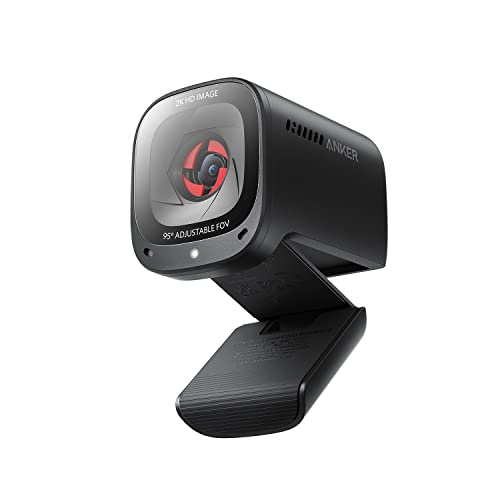
Anker PowerConf C200 2K Webcam
A 2K webcam with low-light correction and dual AI noise-cancelling mics, built for calls in imperfect home-office lighting — a sharper step up from 1080p budget cameras.
For USB-C laptops and premium work calls#
The Logitech MX Brio shoots 4K, connects over USB-C, has dual beamforming mics and a built-in privacy cover, and adds Show Mode for sharing what's on your desk. 4K capture needs a capable computer.

Logitech MX Brio 4K Webcam
The Logitech MX Brio is a premium 4K webcam with 70% larger pixels, AI-enhanced image quality, dual beamforming noise-reducing mics, Show Mode for desk sharing, and a built-in privacy cover.
For streamers who want manual control#
The Elgato Facecam MK.2 records 1080p at 60fps through a fixed-focus f/2.0 lens with a 90-degree field of view, and exposes DSLR-style controls in Elgato Camera Hub. Best under controlled lighting where focus distance stays constant.

Elgato Facecam MK.2
Premium PickThe Elgato Facecam MK.2 gives content creators and streamers full manual camera controls — aperture, shutter speed, and color grading — in a plug-and-play USB-C package.
For dim rooms and difficult light#
The Razer Kiyo Pro Ultra pairs a large 1/1.2-inch Sony STARVIS 2 sensor with an f/1.7 lens and HDR, at 4K30 or 1080p60. It's the most expensive option here and overkill for well-lit meetings.

Razer Kiyo Pro Ultra
The Razer Kiyo Pro Ultra leads the category in low-light performance thanks to its 2.1-inch 1/1.2" Sony STARVIS 2 sensor — a sensor size unmatched in webcam hardware.
Frequently Asked Questions#
Do external webcams work with a MacBook?#
Yes. Standard USB webcams work on macOS without drivers and show up in FaceTime, Zoom, Teams, and Meet. What can differ is the companion software for advanced settings, so check that the brand's app supports macOS. If your MacBook only has USB-C or Thunderbolt ports, use a USB-C webcam or a USB-C adapter.
Will a 4K webcam work on a USB 2.0 port?#
It will usually work, but often not at its top settings. 4K cameras like the Logitech Brio 4K need a USB 3.0 port for full-quality 4K. On USB 2.0 they typically fall back to lower resolutions or frame rates, which is fine for calls but wastes what you paid for.
Why does my webcam look blurry?#
The most common causes are a smudged lens, sitting closer than a fixed-focus camera is tuned for, autofocus hunting in low light, or the app still using your laptop's built-in camera. Wipe the lens, check which camera the app is using, add light in front of you, and sit at a normal distance. If you often lean in close, choose a camera with autofocus.
Can I use two webcams at the same time?#
Yes, on most computers, though each call app only sends one camera at a time. Streaming software can show both, for example a face camera plus a desk camera. Each camera uses USB bandwidth, so plug them into separate ports rather than the same hub if you see dropouts.
When you're ready to compare specific cameras, see the ranked best webcams.